
Documentation
Create a custom animated timer for time sensitive games. With UI animations, you can make the timer pulse and disappear, or even add a custom countdown material that surrounds the clock.
This tutorial shows you how to:
- Set up a material.
- Animate a clockface.
- Change the clock color.
Create a User Widget in the Content Browser by following the instructions in the UI Pop-Ups tutorial.
Step 1: Set Up the Widgets
Once you’ve created the User Widget, double-click the User Widget thumbnail to open the Widget Editor.
-
Drag an Overlay widget into the widget graph and resize it to 1920 x 1080 by dragging the bottom right-corner. This widget acts as the screen where the UI will display.
-
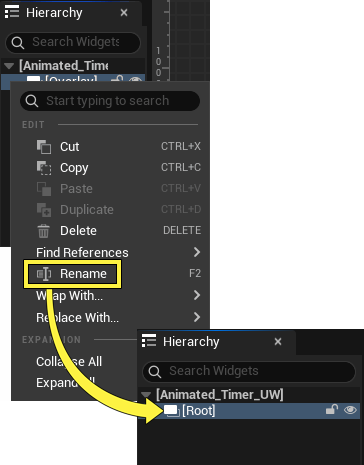
Right-click on the Overlay widget in the Hierarchy panel to rename the widget to Root. This name also reminds you that it is the widget acting as a model of the screen.
-
Drag a second Overlay widget into the Root widget. This widget will contain all the widgets that make up the design and function of the animated timer.
-
Rename the second Overlay widget to ParentContainer in the Hierarchy panel.
You're reading a preview
The full reference is free for BrainDeadGuild Discord members — sign in to read it all, or open the original at the source.
Sign in with your BrainDead.TV / BrainDeadGuild Discord account for full access.