
Using Patchwork Song Sync devices in Fortnite Creative
The Song Sync (S-SYNC) device allows you to play songs from other sources and synchronize them with Patchwork devices. Working in Unreal Editor for Fortnite, you can sync a level sequence to the imported sound data. When you import MIDI files into the device, you can generate Patchwork note data output to control other audio or events!
Possible uses:
- Set up a virtual concert with pre-recorded audio, then use Patchwork to control the timing of audiovisual effects in sync with that audio.
- Build musical gameplay experiences ranging from rhythm action, like Fortnite Festival, to platformers where hazards and enemies move to the music, or racing games where the song you select changes the track layout, and more!
- Play a pre-recorded vocal track and mix live Patchwork audio with it.
The video below gives a preview of possibilities when using the Song Sync device:
Device Options
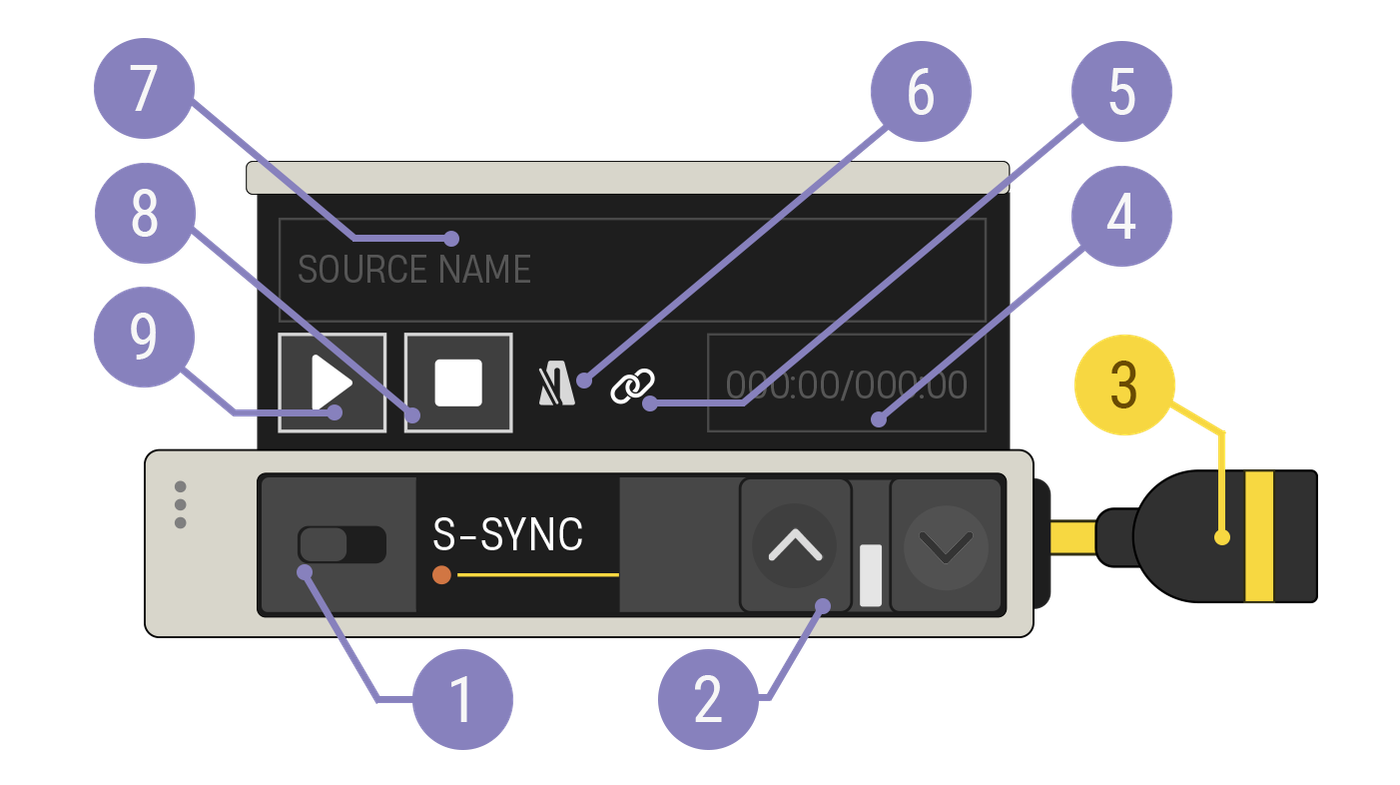
| Option | Values | Description |
|---|---|---|
| 1. Enabled Switch | On, Off | When disabled, the device does not play content or output note data. |
| 2. Expand Buttons | Closed, Open | Expand the device to reveal more customization options. |
| 3. Note Out Cable | N/A | Connect the Note Out cable to a yellow Note In port. |
| 4. Playback Time Counter | N/A | Shows the current playback time and the total time for the displayed MIDI asset, Level Sequence, or synced device. |
| 5. Linked Song Syncs icon | N/A | Indicates if any other Song Sync devices are linked to this one. There are 2 possible states: * Disabled state: No icon shown. This device is not linked to any other Song Syncs. link-disabled * Enabled state: White link icon shown. This device is linked to other Song Syncs. When it is played/stopped, linked devices will also play/stop. link-enabled |
| 6. Controls Tempo icon | N/A | Indicates whether the Controls Tempo Play Behavior is selected. There are 4 possible states: * Disabled state: No icon shown. This device will never try to control the tempo. Disabled State * Enabled state: White tempo icon shown. This device is not playing, but will try to control the tempo when played. Enabled State * Active state: Green tempo icon shown. This device is currently playing and controlling the tempo. Active State * Blocked state: Red tempo icon shown. This device is currently playing and is set to control the tempo, but can't because another device has control. Blocked State |
| 7. Sync Target display | N/A | If you’ve selected a MIDI asset for the device, its name is shown here. If not, the name of the longest Level Sequence or synced device is shown. |
| 8. Stop Button | N/A | End output of selected track. Disabled until playback begins. |
| 9. Play Button | N/A | Begins playback of any MIDI file and Sync Targets. Disabled if neither MIDI nor Sync Targets are defined. |
You're reading a preview
The full reference is free for BrainDeadGuild Discord members — sign in to read it all, or open the original at the source.
Sign in with your BrainDead.TV / BrainDeadGuild Discord account for full access.